

Overview
- Flyoobe (formerly Flyby11) is a free tool to bypass Windows 11 hardware restrictions and customize the initial setup (OOBE).
- It offers features like removing bloatware, scriptable extensions, and post-install tweaks.
- The interface is clean and approachable for non-experts, but using it comes with some risk (modifying system images, bypassing Microsoft checks).
- For users whose PCs don’t meet Windows 11’s requirements, Flyoobe is one of the most polished free options available today.
- Use with caution, back up data, and understand the trade-offs before proceeding.
Introduction
If you own a PC that Microsoft deems “unsupported” for Windows 11 because of missing TPM 2.0, no Secure Boot, unsupported CPU generation, or low RAM, you may feel cornered: either upgrade hardware or stay on old OS versions. Enter Flyoobe (formerly known as Flyby11), a free, community-driven tool that aims to remove those barriers.
Flyoobe not only bypasses Windows 11’s hardware checks but also gives you control over the “Out-of-Box Experience” (OOBE), letting you skip or modify setup screens, remove preinstalled apps (bloatware), run custom scripts, and more.
In short, for users unwilling or unable to pay for expensive system upgrades, Flyoobe offers a remarkable free path to a more modern Windows install—with trade-offs. In this review, I’ll take you through the experience, features, usual use cases, drawbacks, and whether it’s worth your time.
User Experience & Interface
One of Flyoobe’s strengths is how accessible it feels, even though it’s doing potentially deep system tweaks. The developer has refined the UI (“Bee UI”) to feel modern and intuitive.
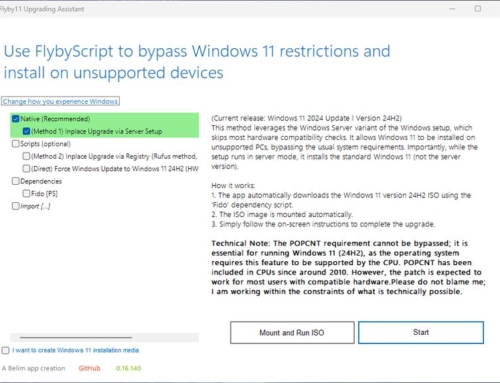
- Step-by-step flow: The latest version introduces a bottom navigation bar (“Next” / “Back”) instead of a cramped tree view, making setup more linear and less confusing.
- Clean OOBE tabs: The OOBE (Out-of-Box Experience) screens are reorganized with clear names (e.g., privacy, apps, setup) and toggles to disable features like Copilot/AI.
- Portable, no install requirement: Flyoobe is typically distributed as a ZIP; you just run the executable; no heavy installer.
- Responsive tweaks: The app has improved behavior under high-DPI settings and better naming conventions to align with Windows’ style.
For a non-technical user, the interface may still feel a little unusual, but the guided layout keeps confusion low. The tool includes explanatory hints, and many users report success even on less-experienced PCs.
Core Components & Feature Breakdown
Below, I’ll break down what Flyoobe can do and how well it performs in each area.
| Feature | What It Does | Observed Strengths | Limitations / Caveats |
|---|---|---|---|
| Hardware Checks Bypass | Skips TPM, Secure Boot, CPU generation, and RAM minimum checks to allow Windows 11 installation. | Works reliably on many older machines. Many users report successful upgrades. | This bypass can disable Microsoft’s safeguards. Some updates may fail; there’s a non-trivial risk of system instability or being in an “unsupported” state. |
| OOBE Customization & Skips | Allows skipping first-run screens, disabling region or network checks, choosing local accounts without using a Microsoft account, and toggling AI/Copilot features. | Gives you control over post-install setup. The new update adds a dedicated “AI / Copilot disable” page. | Not all screens can be skipped in every build; some advanced options may require manual adjustments later. |
| Debloat / App Removal | Allows you to remove Windows built-in apps, choose presets (Full / Minimal), and apply community presets. | Helps reduce clutter without needing manual PowerShell scripts. | Removing components improperly can break dependencies. Some critical apps may have hidden links. |
| Scriptable Setup Extensions | You can plug in your own PowerShell scripts that run during setup to automate further tasks. | Very powerful for tech-savvy users; good for repeat deployments. | Mistakes in scripts may crash installs. Non-technical users should be cautious. |
| ISO Integration & Clean Install | Supports ISO mounting, integration with tools like Media Creation Tool or Rufus, and clean install (not just upgrade). | Cleaner installs are well supported in newer versions (e.g., 1.4+). | The clean install path is still maturing; corner cases may not behave as expected. |
| AI / Copilot Disabling | The latest versions let you disable or remove AI/Copilot features in Windows 11. | Useful for users who want a leaner, privacy-conscious OS. | Some AI features may re-enable after updates; Microsoft could push back on removal in future versions. |
In version 1.10, the tool has rebranded fully to Flyoobe and improved navigation, DPI behavior, and corrected false positive flags from antivirus heuristics. Also, the development roadmap shows continued focus on UI polish and stability.
In summary, Flyoobe packs many advanced features for a free tool. It handles both the “bypass” side and the “post-setup customization” side elegantly. Many of its features feel like ones you’d expect in paid deployment tools.

Flyoobe User Interface
Common Use Cases
Flyoobe is especially appealing in the following scenarios:
- Upgrading an older PC: You have a laptop or desktop that doesn’t meet Windows 11’s requirements, yet the hardware is still usable (e.g., 8 GB RAM, SSD, but lacking TPM). Flyoobe lets you transition without a hardware swap.
- Deploying multiple machines: For small labs or refurb projects, you want a streamlined setup where you skip all the fluff, debloat, and add your own scripts.
- Privacy-first installs: You want to disable all AI/Copilot elements and remove Microsoft’s enforced apps from day one.
- Clean installs, not upgrades: You’re wiping a drive and want a fresh Windows 11 install that is already tuned, with bloat removed.
- Experimenting/tech tinkering: Hobbyists or power users who want to push Windows’s limits or test deployments on hardware that Microsoft doesn’t officially support.
If your PC already meets all Windows 11 requirements and your goal is just a “normal upgrade,” Flyoobe might be more than you need.
Notable Drawbacks & Things to Watch
Given its advanced nature and the fact that this is a free, unofficial tool, there are trade-offs and risks:
- Legality / Microsoft policy: Using Flyoobe to bypass Microsoft’s hardware checks treads into a gray area. Microsoft may consider systems upgraded this way as “unsupported.” Updates might be blocked or rollbacks enforced. However, none of these scenarios has happened in our tests.
- Stability & update risk: Because you override certain safeguards, some Windows updates (especially feature updates) could fail or cause system problems.
- Use at your own risk: Official documentation and commentators warn that modifying system images or bypassing checks may brick your system.
- Not foolproof for all hardware: Very old or exotic hardware may still run into driver or firmware issues despite bypassing checks.
- Learning curve for advanced features: Script extensions or debloat presets are powerful, but misuse can break things.
- Possible antivirus false positives: Some versions flagged parts of the tool as suspicious; newer builds attempt to reduce these triggers.
- Future compatibility unknown: Microsoft could change how Windows setup works (e.g., retiring bypass methods), which might break Flyoobe in future releases.
Overall, these drawbacks are real, but for many users, they may be minor considering the benefit of gaining Windows 11 on otherwise locked-out devices.
Final Verdict
If you’re seeking a cost-free way to upgrade or install Windows 11 on hardware that Microsoft won’t officially support, Flyoobe is a rare gem. It combines bypass tools, customization, debloat, script hooks, and a polished interface, all without asking for a cent.
Yes, there’s risk. But for many users, the payoff is worth it. Just back up your data, test on non-critical systems first, and proceed thoughtfully. If you’re comfortable with some caution, Flyoobe is easily one of the most impressive free tools in the Windows ecosystem today.
Recommendation: Go ahead and try Flyoobe on a less critical machine first. If it works smoothly, use it for your main system. You’ll likely be pleasantly surprised by how much control and freedom it brings without paying anything.
FAQ
Is Flyoobe free forever?
Yes. It’s an open source/community tool distributed free of charge.
Will Windows Updates still work?
In many cases, yes, but feature updates or major version upgrades may fail or break on systems that bypassed checks.
Can I revert to my old system if something fails?
Always back up or image your system first. In some cases, rollback may work; in others, you may need a clean reinstall.
Is it safe for everyday users?
If you follow instructions carefully and take the risk, yes, but mistakes can have serious consequences, so it’s better suited for intermediate users.
Does Flyoobe work on ARM or non-x86 Windows?
No clear evidence suggests support for ARM or non-traditional architectures. It’s mainly for x86/x64 PCs.
Have you tried Flyoobe? Share your experience in the comments below!